192.168.0.1 Admin
192.168.0.1 is the address most routers use to open their settings page. When you type it into your browser it takes you straight to the router’s control panel. From there you can adjust your Wi-Fi name change the password or update your network settings. it is the simple link between your device and the router that keeps your internet connection running smoothly.
What Is 192.168.0.1?
192.168.0.1 an IP address used by many routers as their default address. It is a part of a special range reserved for private networks, like your home or office. It’s not used on the wider internet, so it’s safe and secure within your local network. When you type this address into a web browser, you usually reach the login page of your router.
From there you can adjust settings like Wi-Fi passwords, connected devices and security options. These IPs are private as they help keep your internal network safe from outside interference. Brands like TP-Link, D-Link and Netgear use this IP address because it is simple to remember and keeps your settings safe.
How to Login to 192.168.0.1
It gives you full control over your Wi-Fi network settings. From here, you can change your Wi-Fi name, update passwords or fix internet issues.
- Connect to your router: Use Wi-Fi or an Ethernet cable. Make sure mobile data is off on phones so the browser uses your router, not the SIM.
- Open a web browser: Chrome, Edge, Firefox, or Safari all work. In the address bar, type http://192.168.0.1 and press Enter.
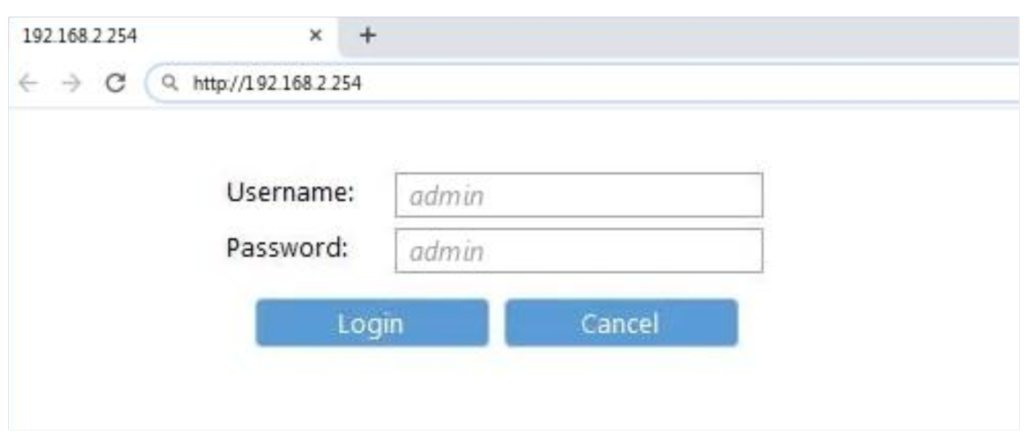
- Enter your login details: You’ll see the router sign-in page. Type the username and password (often printed on a sticker or in the manual). Common defaults are admin / admin or admin / password—but yours may differ.
- Access the dashboard: After logging in, you’ll reach the admin panel where you can change Wi-Fi name, password, and security settings.
How to Reset Your Router If You’re Locked Out
If you can’t remember your router’s password or the login page won’t accept your details, don’t worry, it happens to almost everyone at some point.This process removes all previous configurations, including changed passwords, Wi-Fi names, and custom settings, giving you a fresh start just like when the router was new. Here’s how to reset your router safely:
- Find the reset button: Turn your router around and look for a small hole labeled Reset. It’s usually on the back side.
- Use a pin or paperclip: Insert a thin pin or paperclip into the hole and gently press the button inside.
- Hold for 10–15 seconds: Keep it pressed until you see the router lights blink or turn off briefly.
- Wait for the reboot: The router will restart automatically. Once it’s back on, all settings will be restored to factory defaults.
- Reconnect and log in again: Connect your device to the Wi-Fi (use the default name and password on the sticker or manual). Then go to http://192.168.0.1, enter the default credentials, and access the admin panel again.
Note: After resetting, it’s important to create a new password and reconfigure your Wi-Fi settings to keep your network secure.
How to Change Wi-Fi Name (SSID) and Password
Changing your Wi-Fi name and password is one of the easiest yet most effective ways to keep your internet connection secure. Whether you’re using TP-Link, D-Link, or Netgear, the steps are almost the same and take only a few minutes. Follow these simple steps to update your Wi-Fi details:
- Log in to your router’s admin panel: Open your browser, type the address, and enter your login details to access the dashboard.
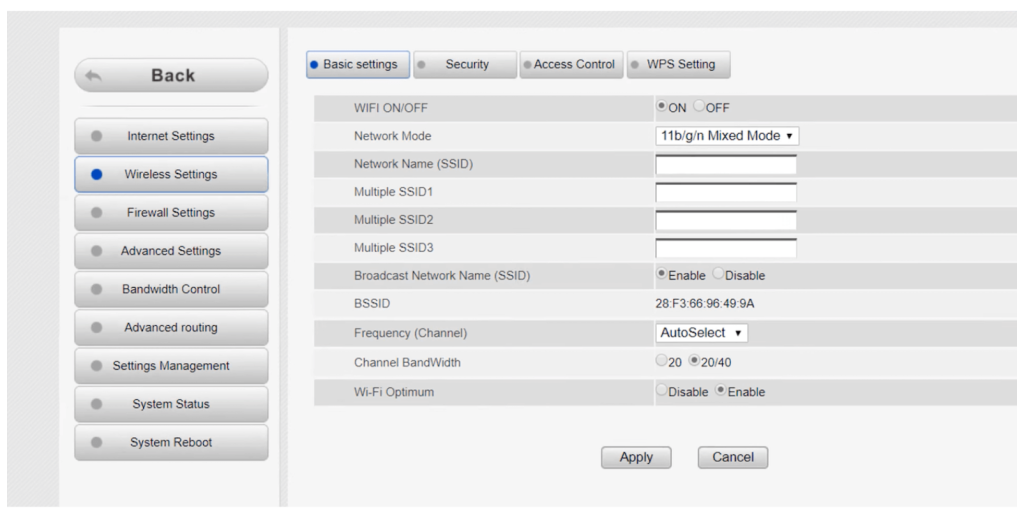
- Go to Wireless Settings: Look for an option called Wireless or Wi-Fi Settings in the main menu.
- Find the SSID (Network Name) field: This is where you can enter a new Wi-Fi name that’s easy to recognize.
- Set a strong password: Create a unique password with a mix of letters, numbers, and symbols to enhance security.
- Save your changes: Click on Save or Apply, and your router will restart to apply the new settings.
- Reconnect your devices: Once the router reboots, connect your devices using the new Wi-Fi name and password.
Pro Tip: Change your password every few months to keep your network safe from unauthorized access.
How to Change Router IP Address
Sometimes, changing your router’s IP address can improve security. Every router comes with a default IP, but you can easily replace it with another private address if needed. Here’s how you can change your router’s IP address safely:
- Log in to your router’s admin panel: Open your browser and enter http://192.168.0.1. Sign in using your username and password.
- Go to Network or LAN Settings: Once inside, look for a section called Network, LAN, or Local Network — the wording may vary depending on your router brand.
- Locate the IP Address field: You’ll see your current IP address listed. Click inside the box to edit it.
- Enter a new private IP: Change it to something like 192.168.10.1 or 192.168.2.1 — just make sure it’s within the same range and doesn’t conflict with other devices.
- Save and reboot the router: Click Save or Apply, then allow the router to restart. The new IP address will take effect immediately.
- Use the new IP to log in again: After rebooting, open your browser and type your new IP address to access the admin panel.
Note: Always write down your new IP address somewhere safe. Once changed, you’ll need it for future logins and network adjustments.
Popular Router Brands That Use 192.168.0.1
Many well-known router brands use this as their default login address because it’s simple, secure, and easy for users to remember. This IP lets you access your router’s control panel, where you can manage Wi-Fi names, passwords, and other settings. While some routers use 192.168.1.1, most popular home routers still rely on this for their setup page. Here are some of the most common router brands:
- TP-Link – Known for its reliability and user-friendly design, TP-Link routers for quick access to Wi-Fi settings and firmware updates.
- D-Link – Offers powerful routers for home and office use, all manageable through the 192.168.0.1 admin panel.
- Netgear – Provides high-speed routers with advanced features that can be easily customized using this IP address.
- Tenda – Popular for affordable and easy-to-set-up routers that use 192.168.0.1 as their default gateway.
- Asus – Offers both gaming and standard routers that can be accessed and configured through 192.168.0.1.
- Belkin – Focused on smooth performance and simple configuration using the same default IP address.
- Xfinity (Comcast) – Their routers often use 192.168.0.1 for local network management and parental controls.
- Mercusys – A growing brand offering simple connectivity options, also managed through 192.168.0.1.
- Cisco – Known for professional-grade routers that also support this IP for local access in smaller setups.
Tip: Even though these brands use the same IP, their admin pages and settings may look different. Always check your router’s label or manual for accurate login details.
Common Login Problems and Easy Fixes
It’s very normal to run into login problems when trying to access 192.168.0.1. Most of these issues are small and can be solved in just a few minutes. Below are the most common problems users face — along with simple, step-by-step solutions written in clear, natural English.
You typed the wrong IP address
Problem: Typing mistakes like using 192.168.o.1 (with the letter “o”) instead of 192.168.0.1 (zero) cause the page not to load.
Fix:
- Double-check the numbers carefully.
- Type http://192.168.0.1 directly into the browser’s address bar.
- Avoid entering it in the search bar — always use the address bar at the top.
You’re not connected to the router’s Wi-Fi
Problem: Your phone or computer may be connected to another network or mobile data.
Fix:
- Turn off mobile data.
- Connect to your router’s Wi-Fi network or plug in the Ethernet cable.
- Try opening 192.168.0.1 again.
Router is turned off or rebooting
Problem: If the router lights are off or blinking, it’s restarting or powered down.
Fix:
- Unplug the power cable and wait 10 seconds.
- Plug it back in and wait until all lights turn solid.
- Then try to log in again.
Final Thoughts
192.168.0.1 gives you full control over your Wi-Fi from changing passwords to fixing small issues. Always keep your login details safe and update your router settings regularly for better performance and security. So next time your internet acts up, just visit http://192.168.0.1, log in, and take charge it’s your network, your control.